
In this article:
Introduction
A Polar Heatmap is a two-dimensional intensity chart rendered in polar coordinates. Instead of mapping data onto horizontal and vertical axes, values are projected over angular (θ) and radial (r) dimensions. Each cell in the heatmap represents a Z-value positioned at a specific angle and radius.
The Polar Uniform Heatmap in SciChart WPF is built on the same data model as the 2D Heatmap. This means it uses the same UniformHeatmapDataSeries type and follows the same principles for storing and updating data. The difference lies entirely in how that data is rendered onto the chart surface.
Data Model and Coordinate Mapping
The Polar Heatmap uses UniformHeatmapDataSeries<TX, TY, TZ> as its underlying data structure. Data is stored in a two-dimensional array where each element represents an intensity value (Z) at a given X and Y index.
In a Cartesian Heatmap, the X dimension maps to the horizontal axis and the Y dimension maps to the vertical axis. In a Polar Heatmap, these same dimensions are interpreted differently:
- The X dimension represents the angular coordinate (θ) and is mapped along the angular (circular) X axis
- The Y dimension represents the radial coordinate (r) and is mapped along the radial Y axis
- The Z value represents intensity and is mapped to color
Although the data grid remains rectangular in memory, it is rendered as a circular or sector-shaped projection on the chart.
The parameters that define the data series remain the same:
- The X start value and X step define the angular origin and angular increment
- The Y start value and Y step define the radial origin and radial increment
Please see below how the same dataset is rendered in a standard 2D Heatmap compared to a Polar Heatmap chart:

Polar Petals

2D Heatmap
Creating a Polar Heatmap
To create a Polar Heatmap, a polar chart surface is required along with polar X and Y axes. The heatmap is rendered using PolarUniformHeatmapRenderableSeries.
| XAML Setup for Polar Surface and Renderable Series |
Copy Code |
|---|---|
<s:SciChartSurface Name="SciChartSurface" Grid.Column="1" ShowLicensingWarnings="False"> <s:SciChartSurface.RenderableSeries> <s:PolarUniformHeatmapRenderableSeries x:Name="HeatmapRenderSeries" UseLinearTextureFiltering="False"> </s:PolarUniformHeatmapRenderableSeries> </s:SciChartSurface.RenderableSeries> <s:SciChartSurface.XAxis> <s:PolarXAxis x:Name="AngularAxis" BorderBrush="#93A3C5" RotationAngle="0" TitleFontSize="20" FlipCoordinates="False" MajorTickLineStyle="{StaticResource AxisTickStyle}" MinorTickLineStyle="{StaticResource AxisTickStyle}"/> </s:SciChartSurface.XAxis> <s:SciChartSurface.YAxis> <s:PolarYAxis x:Name="RadialAxis" FlipCoordinates="False" BorderBrush="#93A3C5" BorderThickness="1,0,0,0" MajorTickLineStyle="{StaticResource AxisTickStyle}" MinorTickLineStyle="{StaticResource AxisTickStyle}"/> </s:SciChartSurface.YAxis> </s:SciChartSurface> | |
Once the chart surface and renderable series are configured, a UniformHeatmapDataSeries must be created and assigned to the series.
| Creating and Assigning UniformHeatmapDataSeries |
Copy Code |
|---|---|
public PolarUniformHeatmap() { InitializeComponent(); const int angularSteps = 32; // X dimension (PolarXAxis) const int radialSteps = 10; // Y dimension (PolarYAxis) var data = GeneratePetalHeatmapData(angularSteps, radialSteps); // X = angle in degrees [0 .. 360), 30 steps x 18 deg // Y = radius in steps [0 .. radialSteps-1] var dataSeries = new UniformHeatmapDataSeries<double, double, double>( data, xStart: 0.0, xStep: 12, yStart: 0.0, yStep: 1.0 ) { SeriesName = "PolarUniformHeatmap" }; HeatmapRenderSeries.DataSeries = dataSeries; } | |
The code above produces a Polar Heatmap that shows a directional “petal” pattern where intensity peaks repeat periodically around the circle:

Configuring the Color Map
The color representation of Z-values is controlled by a HeatmapColorPalette. The palette defines a Minimum and Maximum value range and a set of Gradient Stops that determine how numeric values are mapped to colors.
| Defining ColorMap for the PolarUniformHeatmapRenderableSeries |
Copy Code |
|---|---|
<s:PolarUniformHeatmapRenderableSeries.ColorMap> <s:HeatmapColorPalette Minimum="0" Maximum="200"> <GradientStop Offset="0.0" Color="#FF14233C"/> <GradientStop Offset="0.2" Color="#FF264B93"/> <GradientStop Offset="0.4" Color="#FF50C7E0"/> <GradientStop Offset="0.6" Color="#FFDC7969"/> <GradientStop Offset="0.8" Color="#FFF48420"/> <GradientStop Offset="1.0" Color="#FFF48420"/> </s:HeatmapColorPalette> </s:PolarUniformHeatmapRenderableSeries.ColorMap> | |
Values below the minimum are clamped to the lowest color in the palette, and values above the maximum are clamped to the highest color.
Stepped Color Map
To produce a Stepped Color Map (sharp transitions between colors), use the standard WPF technique for creating a gradient brush with discrete transitions: assign the same color to two adjacent GradientStop elements at the boundary where you want the step to occur. By repeating colors at specific offsets, smooth interpolation is eliminated at those points, producing clearly defined color bands instead of continuous gradients:
| Stepped Color Map |
Copy Code |
|---|---|
<s:PolarUniformHeatmapRenderableSeries.ColorMap> <!-- Each color band is defined by two GradientStops at the same Offset to create sharp transitions --> <s:HeatmapColorPalette Minimum="0" Maximum="200"> <!-- Represents lowest values (0-40) --> <GradientStop Offset="0.0" Color="#FF14233C"/> <GradientStop Offset="0.2" Color="#FF14233C"/> <!-- Represents low-medium values (40-80) --> <GradientStop Offset="0.2" Color="#FF264B93"/> <GradientStop Offset="0.4" Color="#FF264B93"/> <!-- Represents medium values (80-120) --> <GradientStop Offset="0.4" Color="#FF50C7E0"/> <GradientStop Offset="0.6" Color="#FF50C7E0"/> <!-- Represents medium-high values (120-160) --> <GradientStop Offset="0.6" Color="#FFDC7969"/> <GradientStop Offset="0.8" Color="#FFDC7969"/> <!-- Represents highest values (160-200) --> <GradientStop Offset="0.8" Color="#FFF48420"/> <GradientStop Offset="1.0" Color="#FFF48420"/> </s:HeatmapColorPalette> </s:PolarUniformHeatmapRenderableSeries.ColorMap> | |
Please see below how the same chart is rendered using a continuous (gradient) ColorMap versus a stepped ColorMap:

Continuous ColorMap

Stepped ColorMap
Defining Empty (Transparent) cells in Heatmaps
You may sometimes want to leave parts of a Heatmap visually empty. If you set the Z-value of a heatmap cell to Double.NaN, SciChart will skip color mapping for that cell and it will appear as an empty (transparent) space in the heatmap.
HeatmapColorMap (Heatmap Legend) control
A Polar Heatmap can be accompanied by a visual legend using the standalone HeatmapColorMap control. This control displays the gradient scale corresponding to the heatmap’s color palette and provides context for interpreting Z-values.
To use it, declare an instance of HeatmapColorMap in your layout and bind its ColorMap, Minimum, and Maximum properties to the corresponding properties of the heatmap’s HeatmapColorPalette. This ensures that the legend accurately reflects the active color scale:
| Defining HeatmapColorMap |
Copy Code |
|---|---|
<s:HeatmapColorMap Grid.Column="1" HorizontalAlignment="Right" VerticalAlignment="Stretch" BorderThickness="0" Background="{StaticResource ThemedTransparentChartBackground}" ColorMap="{Binding ColorMap.GradientStops, Source={x:Reference HeatmapRenderSeries}, Converter={StaticResource ColorsToLinearGradientBrushConverter}}" Maximum="{Binding ColorMap.Maximum, Source={x:Reference HeatmapRenderSeries}}" Minimum="{Binding ColorMap.Minimum, Source={x:Reference HeatmapRenderSeries}}" Orientation="Vertical" EnableAxisDrag="True" TextFormatting="0" Margin="20"> <s:HeatmapColorMap.AxisStyle> <Style TargetType="s:AxisBase"> <Setter Property="Margin" Value="-12,0,0,0"/> <Setter Property="BorderThickness" Value="1,0,0,0" /> <Setter Property="BorderBrush" Value="#93A3C5"/> <Setter Property="DrawMajorBands" Value="False"/> <Setter Property="DrawMinorTicks" Value="False"/> <Setter Property="DrawMajorGridLines" Value="False"/> <Setter Property="DrawMinorGridLines" Value="False"/> <Setter Property="MajorTickLineStyle" Value="{StaticResource AxisTickStyle}"/> </Style> </s:HeatmapColorMap.AxisStyle> </s:HeatmapColorMap> | |
The legend can be visually integrated with the chart theme using its Background and Foreground properties. Various styling and layout options are available, including label formatting, orientation, and alignment, allowing flexible positioning and appearance within the parent surface.
HeatmapColorMap and LegendModifier
The HeatmapColorMap control can be used together with the LegendModifier to take advantage of its legend positioning capabilities. To do this, place a HeatmapColorMap inside a ControlTemplate and assign that template to the LegendModifier via the LegendTemplate property. An example of this approach can be found in the “Daily Max Temperature Heatmap” demo.
Formatting Z-Values in Tooltips
In a Polar Heatmap, Z-values are exposed through hit-testing mechanisms such as tooltips rather than being rendered directly inside each cell. The formatting of these values can be controlled via the TextFormatting property on the renderable series. By default, values are formatted using the "N2" numeric format, displaying two decimal places.
For more advanced scenarios, the FormatDataValue(double dataValue, int xIndex, int yIndex) method can be overridden. This allows returning custom strings for specific heatmap cells based on their X and Y indices. Using this approach, you can provide conditional formatting, apply unit suffixes, or substitute entirely different labels for selected cells while keeping the default formatting behavior for the rest of the dataset.
Configuring the Polar Heatmap Shape
The visible shape of a Polar Heatmap is controlled entirely by axis VisibleRange settings. No changes to the data model are required.
The Angular Axis (PolarXAxis) VisibleRange defines the full circular domain available for rendering. The heatmap is projected within this complete angular range. If the chart’s Data Range occupies only a portion of the defined VisibleRange, the heatmap will appear within the corresponding sector of the circle while the remaining angular space remains empty. This allows precise control over how much of the circle is used for visualization and is commonly applied in radar, sonar, and ultrasound-style displays.

The same behavior applies to the Radial Axis (PolarYAxis). Its VisibleRange defines the full radial extent of the chart. If the Data Range spans only part of this radial interval, the heatmap will occupy the corresponding ring segment, leaving the unused radial area unrendered.
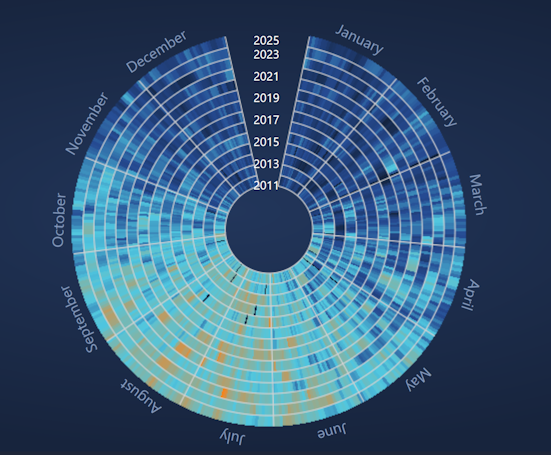
This approach can be used to create a chart with an inner gap, resulting in a donut-style appearance. Axis labels, if not desired, can be hidden with the Label Provider API.
Tips and Best Practices
Smoothed Cell Edges: Enable UseLinearTextureFiltering to achieve smoother visual transitions between heatmap cells. Disable it to render sharp, clearly defined cell boundaries for a more pixelated appearance.
Stepped Color Map: To produce a stepped Color Map with sharp transitions between colors, use the standard WPF technique for creating a gradient brush with discrete transitions. Assign the same color to two adjacent GradientStop elements at the boundary where you want the step to occur. See the “Configuring the Color Map” section above for an example.
Tooltips: To display tooltips for a Polar Heatmap, use the TooltipModifier.
Heatmap Legend with LegendModifier: The HeatmapColorMap control can be used together with the LegendModifier to take advantage of its legend positioning capabilities. Place a HeatmapColorMap inside a ControlTemplate and assign that template to the LegendModifier via the LegendTemplate property. An example of this approach can be found in the “Daily Max Temperature Heatmap” demo.
Use Cases
Polar Heatmaps are particularly useful when visualizing directional, cyclic, or periodic data where angular relationships are more meaningful than Cartesian positioning.
Polar heatmaps are widely used in:
- Physics and engineering for field visualization
- Medical imaging (e.g. ultrasound, see "Polar Ultrasound" Example)
- Environmental mapping (see "Daily Max Temperature Heatmap")
- Radar and sonar data